
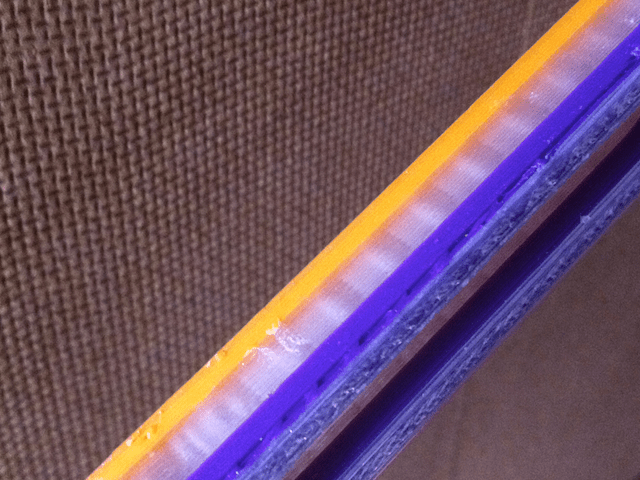
 My 3d printer is great at printing single colour objects, but when I want to print something in more than one colour, which is remarkably often, all sorts of problems ensue.
The single print head reminds me of the good(?) old days of dot matrix printers where colour printing involved changing the ribbon and feeding the paper back into the printer again.
As it was back then, changing colour mid print is fraught with difficulties. So far I have found 3 different methods to do this, none of which are entirely satisfactory…
- First up is a seemingly simple solution, of simply cutting the filament and hand feeding in each colour into the extruder as the printer is going about its business. This actually works really well if:you get your timing spot on (and don’t miss your cue to change colours.
- you manage to get the filament exactly lined up behind the existing filament so that once the extruder has grabbed it it does not slip off the end of the filament it is now pushing and get jammed against the inside of the extruder housing.
- you have a really strong bowden tube. The break in the filament seems to be enough to deform the PTFE bowden tube on my printer, jamming the filament and ruining the print. Using an all in one extruder and hotend would negate this problem, but there is no space on the Huxley for something like this.
this is the solution I am sure I will continue to use on those occasions when I discover, to my horror, that a spool is going to run out before my print is finished.
- The solution that inspired me to play these crazy games (and write off countless lengths of PTFE tubing) was this fantastic article about how to join filament together, although I do not really want to make a heating block like this if I can help it and I am certain I would only end up doing myself an injury with something like that!
My experiments trying to join filament with a heat gun have not yielded anything useful yet, with my results either bring far too brittle, or two chunky to fit into the extruder. - The third solution is the most bothersome, although it does seem to work. It involves cutting up the printout so that the printer stops and waits for me to change the filament over each time.
First, before starting the print, I decide where I want the colour changes to occur.
At the moment I am only changing on the layer boundaries. Anything more would make this solution impractical.
Once I have determined where the changes will take place I search for them in the g-code for the print and split the file in two just before each of these boundaries. The code to look for here is the first instance ofG1G1 Z3.000 F7800.000 ; move to next layerIf you raise the print head to avoid collisions make sure that this is the start of a new layer and not just the print head moving to a different part of the board. In Slic3r it is good to turn on comments in the G-code to help identify this.
Now you need to modify the code.
In the first file add the following to the endG1 Z4.000 ; lift
G1 X5 Y5 ; move out of the way
G1 F960.000 E-300.00000 ; retract all the way outThis will lift the print head to 4mm (I am changing colour at 3mm so this is 1mm above my print), move to the corner of the bed and retract the filament) .
Now, in the second file I already have the following:G1 Z3.000 F7800.000 ; move to next layer
G1 X66.616 Y78.946 ; move to first perimeter pointNow, whilst this will work I would rather move the print head back to where it is supposed to resume printing before moving the head down in-case it dislodges part of the print, so I swap these two lines over.
G1 X66.616 Y78.946 ; move to first perimeter point
G1 Z3.000 F7800.000 ; move to next layerand that’s about it. Each part of the print is appropriately numbered and when that part is finished the print head moves away from the print and the filament is wound out. None of the heaters turn off, so the print remains stuck in place while you change the colour, then you load the next stage and hit print again.
Update: Richard Gain suggested in the comments that it would be nice to have pause and resume commands.
I think these already exist, although, frustratingly, I cannot try this out at the moment.
The commands are M25 to pause while printing from an SD Card and M24 to resume. With this arrangement my example above could be contained in a single G-code file:
G1 Z4.000 ; lift

G1 X5 Y5 ; move out of the way

G1 F960.000 E-300.00000 ; retract all the way out
M25
G1 X66.616 Y78.946 ; move to first perimeter point

G1 Z3.000 F7800.000 ; move to next layer
The print will stop at the M25 command and wait for the user to enter M24 at the console.
As I had to remove SD Card functionality to get Marlin working on my printer, I cannot check that this would work. Does anyone want to give it a go?


Thank you very much for those simple, yet effective instructions Stephen – it really isn’t that much of a pain to split the code as you describe although finding the exact height at which you want a second (or third maybe?) colour can be a little wasteful if you have to print out a practice piece first so that you can “Pause” and then “Get Position” in order to determine the correct Z height.
I used this technique to produce a Gear O’Clock thing: http://www.thingiverse.com/thing:12173 – I will be posting up my derivative over the next few days once I have some photographs. I printed the number pieces as two plates using a contrasting colour for the actual digits. My first attempt at making this thing was done using paint – before I adopted the ‘purist’ approach and used PLA for the whole job based on your words of wisdom – which I would not have done unless I had read this Blog.
One word of caution to anyone else who tries this technique – don’t try and lift Z too high at the end of part one without paying attention to its feedrate. I tried lifting by 10mm at first – too quickly for the couplings to cope with – nasty squeaking sound and an X axis which needed realigning. Still, lesson learned and I will not be doing that again!
Looking forward to the next Blog – FPU and auto bed levelling?
Just in case you are interested: http://www.thingiverse.com/thing:18959
Your colour changing description above gets a mention!
Alan
@Alan Ryder
Yes I just saw that. the clock looks great. Thanks for the mention.
Hi Stephen
I tried a little bit of Gcode tinkering when I had that problem with Yoda’s head and needed to print just the top to finish off the model.
Now I have another use case and need a little nudge in the right direction. I want to make prints with better support, and by ‘better’ I mean ‘not stuck to the model’. I have a couple of ideas about how to do this (one using light oil and the other small slips of Kapton tape) but for both methods I would like the nozzle to be right out of the way while I work on the model.
Now, I could just command the head to move and pause for number of seconds but this could put me under pressure. So I was wondering if there was a ‘pause’ command, with a corresponding ‘resume’.
If I have understood you correctly, you take a different approach and treat each chunk as a completely separate file, which I haven’t tried. Is that correct and does it work well?
Thanks
Richard
Hi Rich,
Cutting the print up as described does work, but it can be a bit confusing if you are doing lots of stops and starts making sure you select the correct file to go next.
I do like the idea of the “press any key to continue” option. I wonder how easy it would be to implement. I can’t see it being too difficult.
Hmm… Something to think about…Actually, there is a pause command.
M25You need to be using the SD card for it to work, but I don’t see any reason why that couldn’t be embedded in the g-code.
Unfortunately I cannot try it just now as Marlin does not fit on my controller board with the SD Card enabled.
Still playing with this! See here: http://www.thingiverse.com/thing:20434
I believe that a filament joiner for 1.75mm filament may be some way off although I am still musing it over as an idea!
Alan